"We have a website, why aren't we on Google Shopping?" is one of the most common questions an e-commerce client asks — and the answer is almost always the same: a website being online and a product feed being connected to Google Merchant Center are two completely separate things. Google doesn't crawl a store's product pages and guess at prices and stock the way it indexes a blog post; it needs a structured feed, a verified and claimed domain, and an approved account before a single product can show up in a Shopping search. This guide walks through that full path, plus the handful of India-specific rules and rejection causes that trip up most first-time setups.
What Google Merchant Center actually does
Merchant Center is the account layer where Google reads a store's product data — name, price, image, availability, shipping — and uses it to place products across four surfaces at once: the Shopping tab, regular Google Search results, Google Images, and Google Maps. It's worth knowing this stayed the same even though the product's name briefly changed: Google rolled out an upgraded "Merchant Center Next" experience over 2023–2025, then dropped the "Next" and restored the plain "Google Merchant Center" name in July 2026 — a rebrand only, with no impact on existing accounts or campaigns.
None of this requires manually listing each product with Google one at a time. Once the feed is connected and kept in sync, new products, price changes and stock updates flow through automatically — which is also exactly why a stale or disconnected feed is the most common reason a store's Shopping listings quietly go empty months after a successful launch.
Setting up the account: create, verify, claim
The account side of the setup is straightforward and doesn't touch the store's code at all:
- Create the account at merchants.google.com — business name, country, and address, matching how the business is actually registered.
- Add the website under Settings → Business info → Online store.
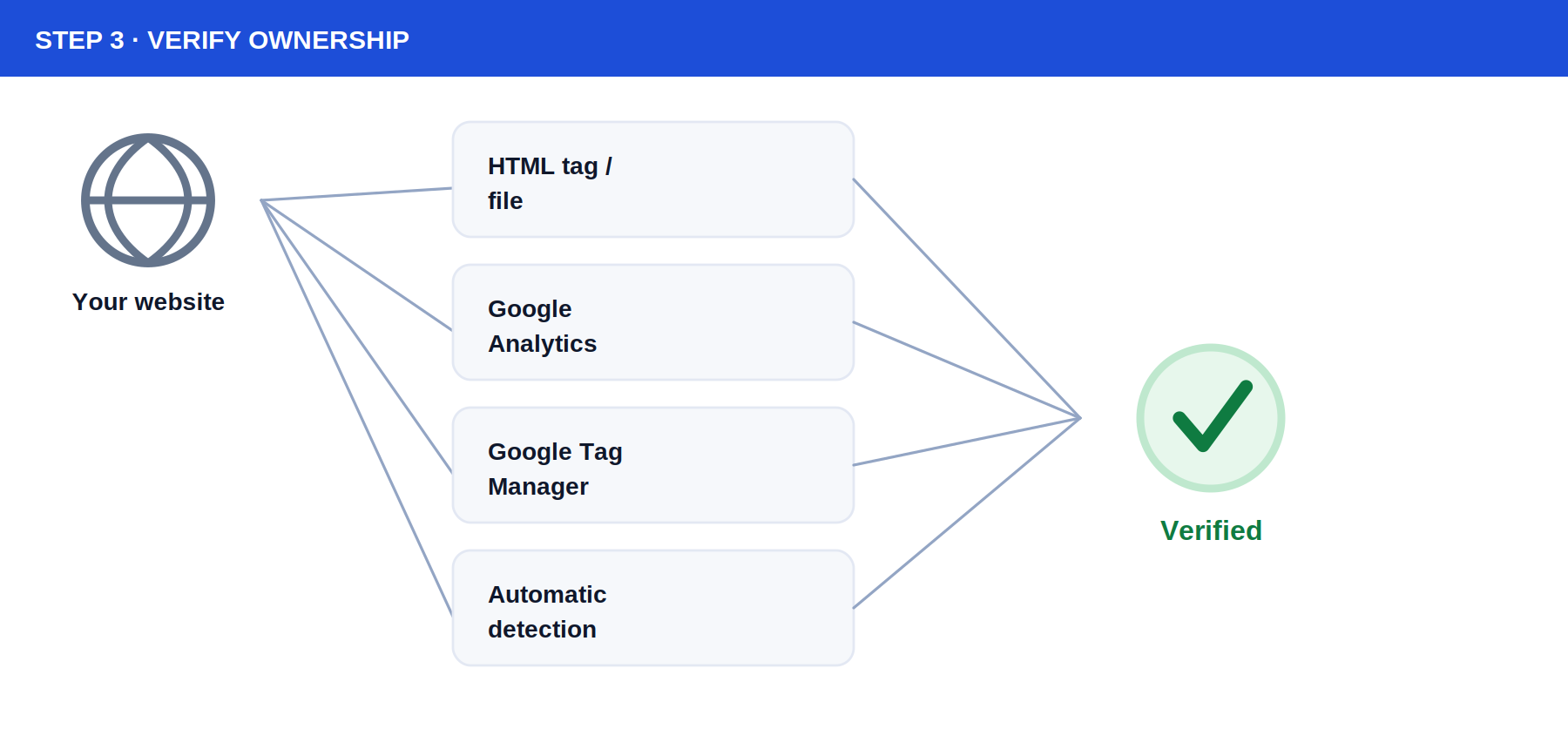
- Verify ownership — Google offers an HTML tag or file, linking an existing Google Analytics or Tag Manager account, an email-based method, or automatic detection if the site already uses another Google product.
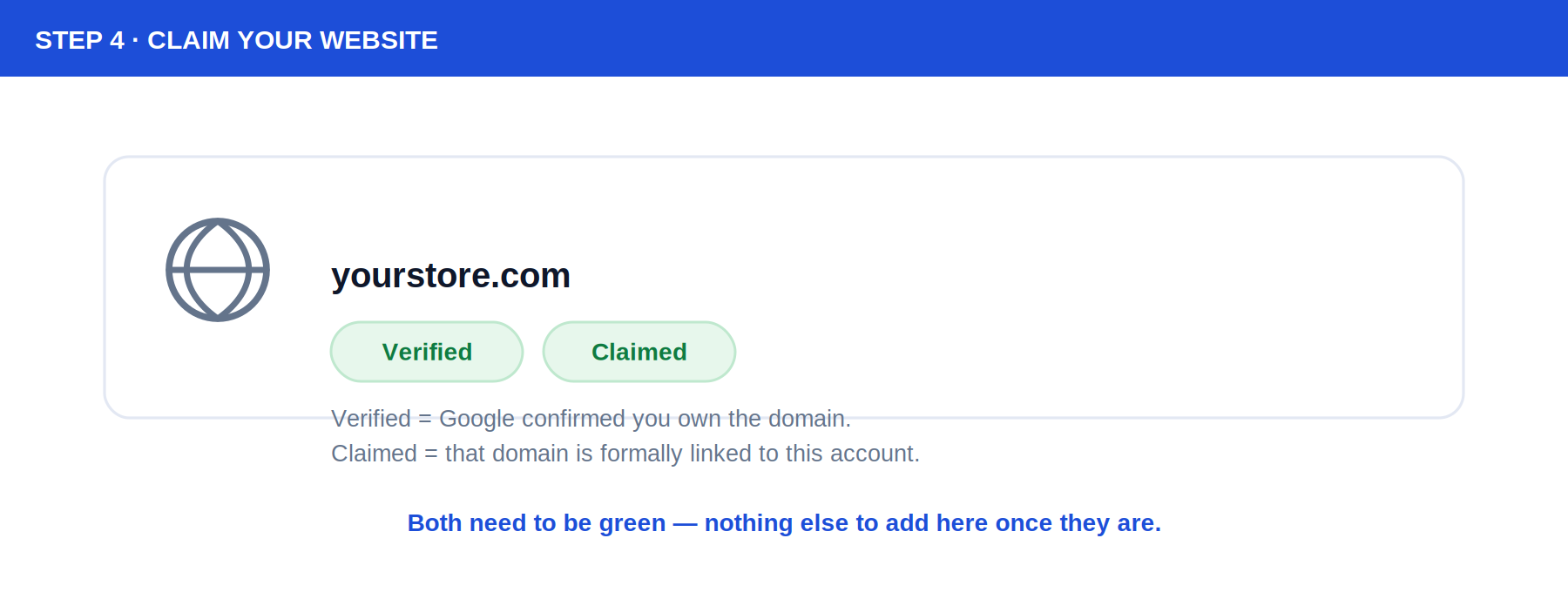
- Claim the domain — a separate, one-click step after verification that formally links that specific website to this specific Merchant Center account. Both "Verified" and "Claimed" need to show as complete before anything else matters.
A growing number of accounts are also asked for business identity verification at some point — a government-issued ID for the account holder, plus business registration or tax documents matching the legal name on file. For an Indian business, the GST certificate and business PAN are the documents most likely to satisfy this — Google's own guidance doesn't spell out every accepted document type per country, so it's worth having these ready before the screen appears rather than scrambling once it does.
Connecting the product feed
This is the step that's actually skipped most often — an account can be fully verified and claimed with zero products in it, which is a blank Data sources screen and no Shopping listings at all. How this feed gets connected depends entirely on the platform the store runs on.
| Store platform | How the feed connects | Effort after setup |
|---|---|---|
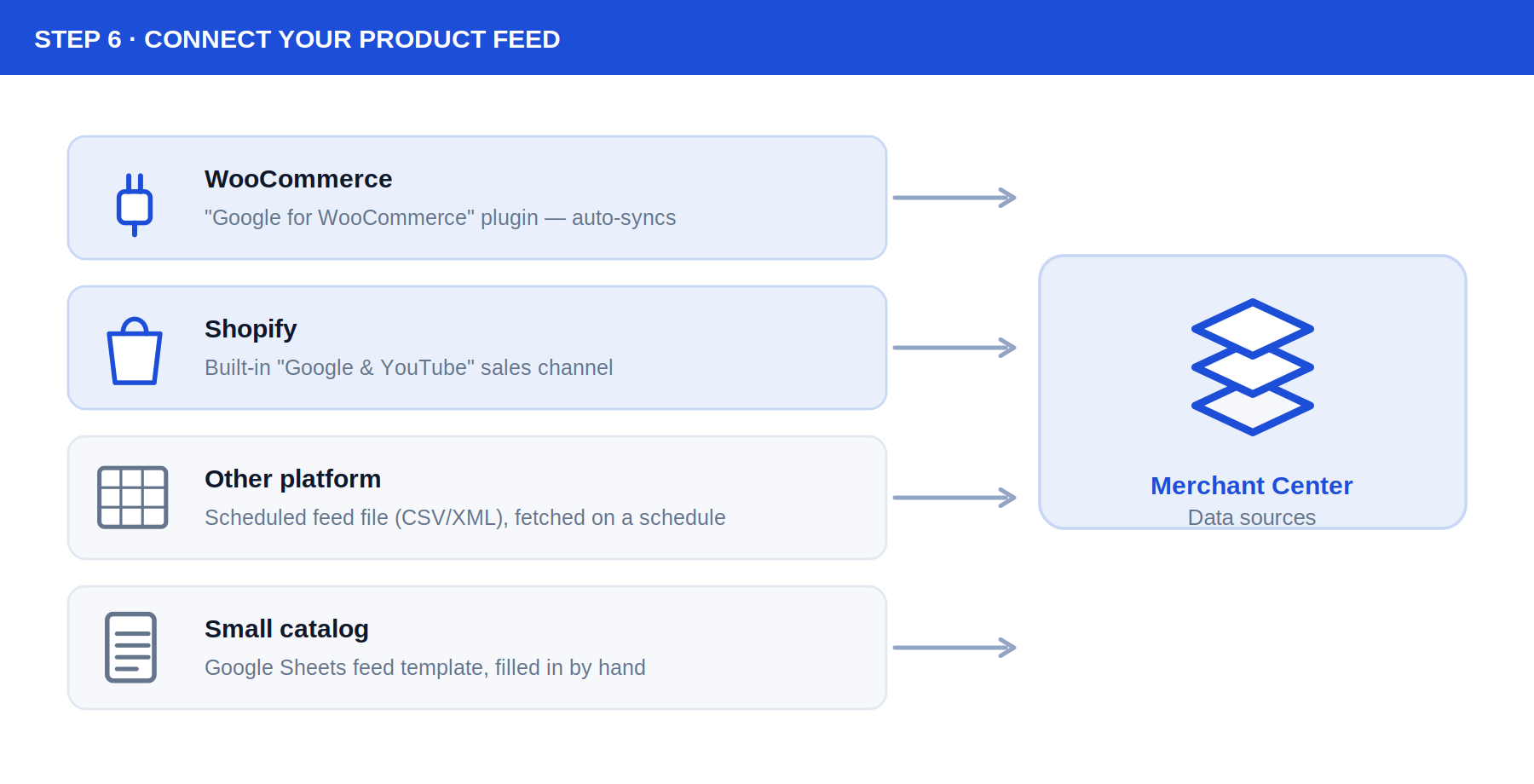
| WooCommerce | Official "Google for WooCommerce" plugin — connects to the existing Merchant Center account directly from wp-admin | Auto-syncs; near-zero ongoing effort |
| Shopify | Built-in "Google & YouTube" sales channel, added from the Shopify App section | Auto-syncs; near-zero ongoing effort |
| Other platforms / custom builds | A scheduled fetch of a generated CSV/XML feed URL, registered under Merchant Center → Data sources | Needs a feed-generator plugin or script; updates on the fetch schedule, not instantly |
| Very small catalogs (under ~50 SKUs) | Google's own Google Sheets feed template, linked directly | Manual — has to be re-edited by hand whenever price or stock changes |
For a WooCommerce or Shopify store specifically, there's rarely a good reason to build a manual feed — the official plugin/channel does the same job with far less ongoing maintenance, since it reads directly from the live product database instead of a periodically-refreshed export.
The rules that actually get products rejected
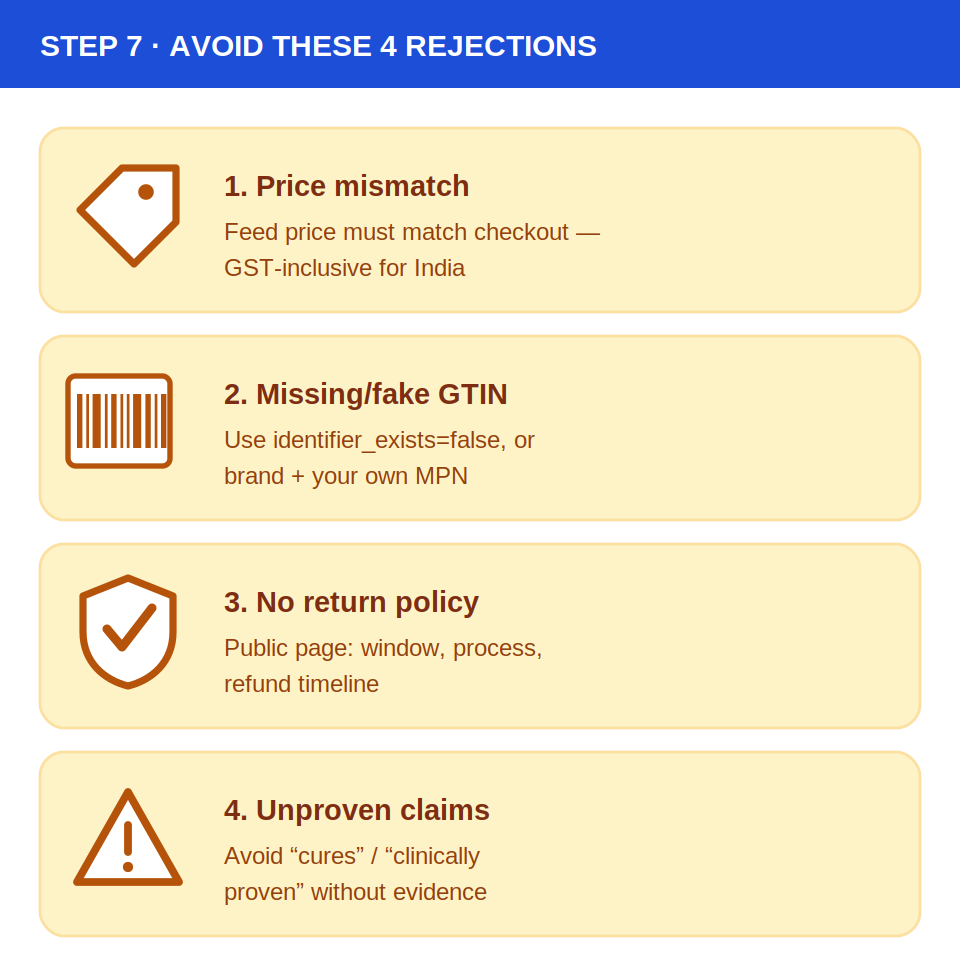
Once a feed is submitted, Google reviews every product before it's eligible to show. Four issues account for the large majority of rejections, and all four are fixable before submission rather than after:
- Price mismatch. The price in the feed has to match the live product page exactly. For India — along with most countries outside the US and Canada — that price must already include GST, the same figure a shopper sees at checkout. A feed built from a US-style template that excludes tax is a common, avoidable cause of this exact rejection for Indian sellers.
- Missing or fabricated GTIN. Google wants a GTIN, brand and MPN "if they exist." For a product that genuinely has no barcode — common for handmade, small-batch, or private-label goods — the fix isn't leaving the field blank or inventing a number; it's setting
identifier_existsto false, or more simply, using the store's own brand name plus a self-assigned product code as the MPN. - Return policy gaps. Merchant Center expects a publicly accessible return policy page — no login required — that clearly states the return window (a 30-day minimum is the current expectation), condition requirements, the return process, and refund timeline, matching whatever is entered in Merchant Center's own shipping/returns settings.
- Unsubstantiated claims. Especially in health, beauty and wellness categories, titles and descriptions using words like "cures," "clinically proven," or similar medical-sounding language without evidence get flagged under Google's misrepresentation policy — this catches products, not just accounts, so it's worth a pass over every product's copy before submitting.
Checking product status once the feed is live
A connected feed doesn't mean every product is visible yet — each one goes through Google's own review first. Under Products → All products in Merchant Center, every item shows one of three states.
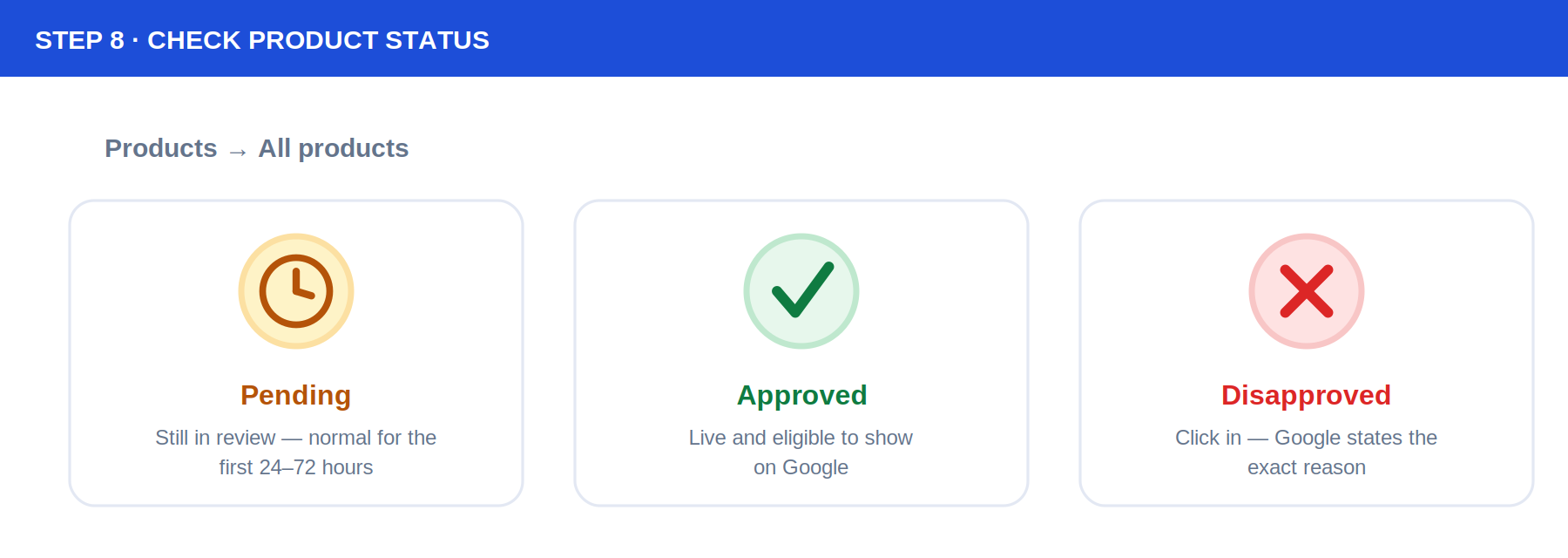
Pending just means the review hasn't finished yet — normal for the first 24–72 hours after a feed first goes live. Approved means the product is live and eligible to show. Disapproved means something needs fixing — clicking into the product shows Google's specific reason, which is almost always one of the four issues above.
Confirming it's actually live on Google
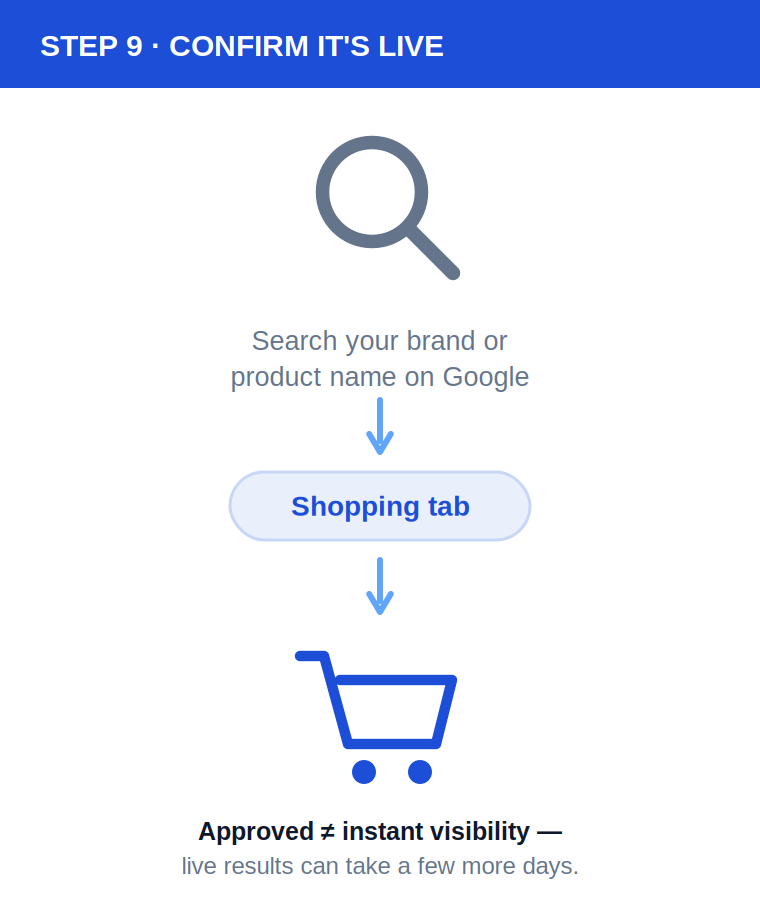
"Approved" in Merchant Center and "visible in a real search" aren't quite the same moment. The direct way to check is simply searching for it: go to Google, search a brand or product name, and click the Shopping tab in the results (or go straight to google.com/shopping and search from there). Free listings can also surface in plain Google Search, Google Images and Google Lens, not only the Shopping tab specifically.
Free listings
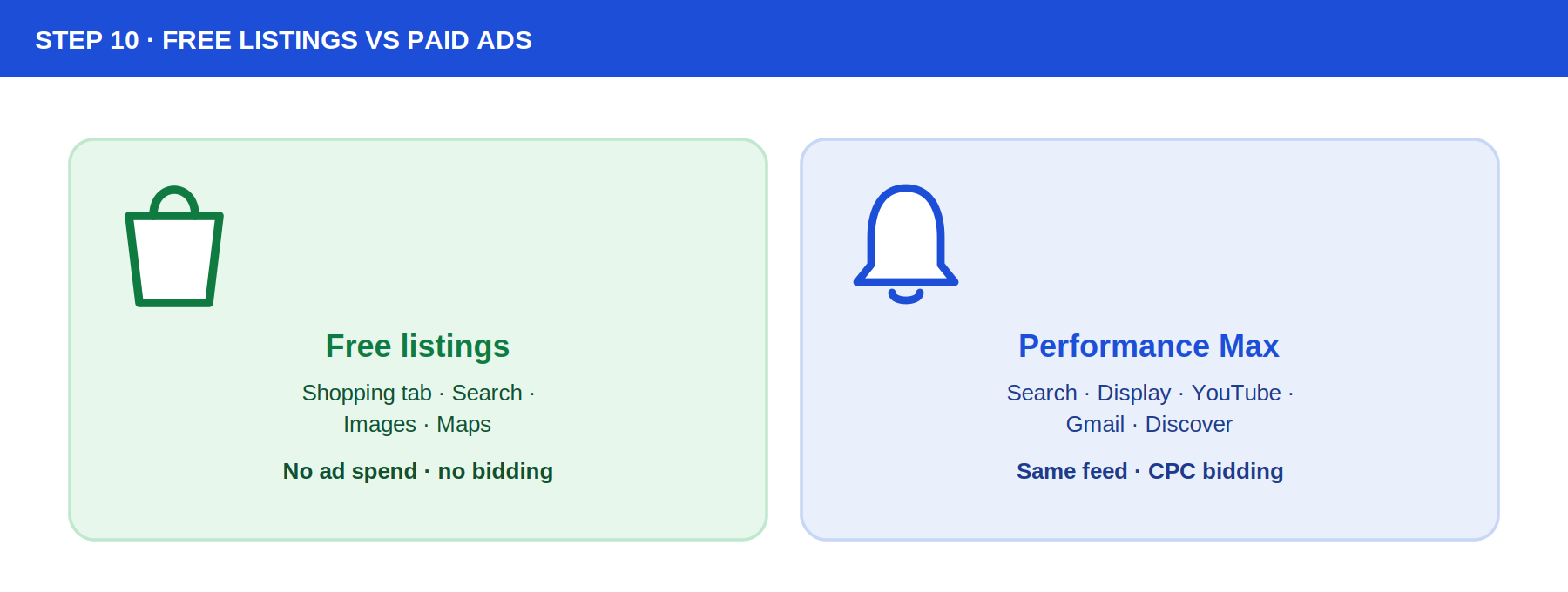
Once approved, products appear across the Shopping tab, regular Search, Google Images and Google Maps at no cost and with no bidding — Google algorithmically matches products to relevant searches. This is the default outcome of a clean, approved feed, and it's worth getting right before spending anything on ads.
Paid Shopping ads (Performance Max)
Standalone Shopping campaigns have largely been folded into Performance Max, which pulls from the same product feed and adds priority placement plus reach across Search, Display, YouTube, Gmail and Discover through CPC bidding. Because it's the same underlying data, every fix made for free-listing approval also improves the paid campaign — there's no separate feed to maintain for each.
Where Apensia fits into this
Apensia is a Chandigarh-based digital marketing and web development company, founded in 2015 by Kuldeep Chandel, who has worked in IT since 1995. Getting a store onto Google Shopping sits across two of the services here at once — the e-commerce build itself (WooCommerce, Shopify or a custom store) and the digital marketing & PPC service that handles the Merchant Center account, feed setup, and any Performance Max campaigns layered on top once free listings are live.
Before submitting a feed, check these five things
- Does the feed price match the live checkout price exactly? Including GST for an India-based store.
- Does every product have a GTIN, or a proper identifier_exists / brand+MPN fallback? Never a blank field or a guessed number.
- Is the return policy page live, public, and does it match Merchant Center's settings? Return window, process and refund timeline all need to be stated.
- Does any title or description make an unproven claim? Especially for health, beauty or supplement products.
- Is the site actually showing both "Verified" and "Claimed"? Both, not just one — a claimed-but-unverified or verified-but-unclaimed site won't accept a feed.
FAQ
What is Google Merchant Center?
Google Merchant Center is the account Google uses to read a store's product data — titles, prices, images, availability — so it can show those products across Google Shopping, regular Search results, Google Images and Google Maps. It was briefly called "Merchant Center Next" during a 2023-2025 platform upgrade, but Google restored the plain "Google Merchant Center" name in July 2026; nothing changed for existing accounts besides the label.
Is getting listed on Google Shopping free?
Yes — once a product feed is approved, products can appear in Google's free listings across the Shopping tab, regular Search, Google Images and Google Maps with no ad spend and no bidding involved. Paid Shopping ads are a separate, optional layer on top of the same feed, run today almost entirely through Performance Max campaigns rather than standalone Shopping campaigns.
Do I need a GTIN or barcode to list products on Google Shopping?
Only if the product actually has one. Google's guidance is to include a GTIN, brand and MPN when they exist, since it improves matching. For a genuinely barcode-less product — common for handmade or small-batch goods — the correct fix is either setting identifier_exists to false, or the simpler route Google itself suggests: use the store's brand name as "brand" and assign the product its own SKU as the MPN. Leaving the field blank or guessing a fake GTIN is what causes rejections.
Why does Google want GST-inclusive pricing for an Indian store's feed?
India is one of more than 40 countries (alongside most non-US/Canada markets) where Google requires the price submitted in the feed to already include applicable tax, matching exactly what a shopper sees at checkout on the live site. The US and Canada work the opposite way, excluding tax from the feed price — so a feed built by copying a US-style template is a common cause of India-specific price-mismatch rejections.
How long does Google Merchant Center approval take?
Google doesn't publish a fixed turnaround, but in practice, initial account review typically takes a few days, and individual product-level review after a feed is submitted (or after a disapproved product is fixed and resubmitted) commonly clears within 24-72 hours. Even after a product shows "Approved" inside Merchant Center, it can take a few more days to actually start appearing in live Google search results.
Can I connect a WooCommerce store to Google Shopping automatically?
Yes — the official "Google for WooCommerce" plugin (built by Google and WooCommerce, over 800,000 active installs) connects a store's catalog directly to Merchant Center and keeps price, stock, images and descriptions synced automatically after a one-time setup, without needing a separately maintained feed file. Shopify has an equivalent built-in "Google & YouTube" sales channel that works the same way.
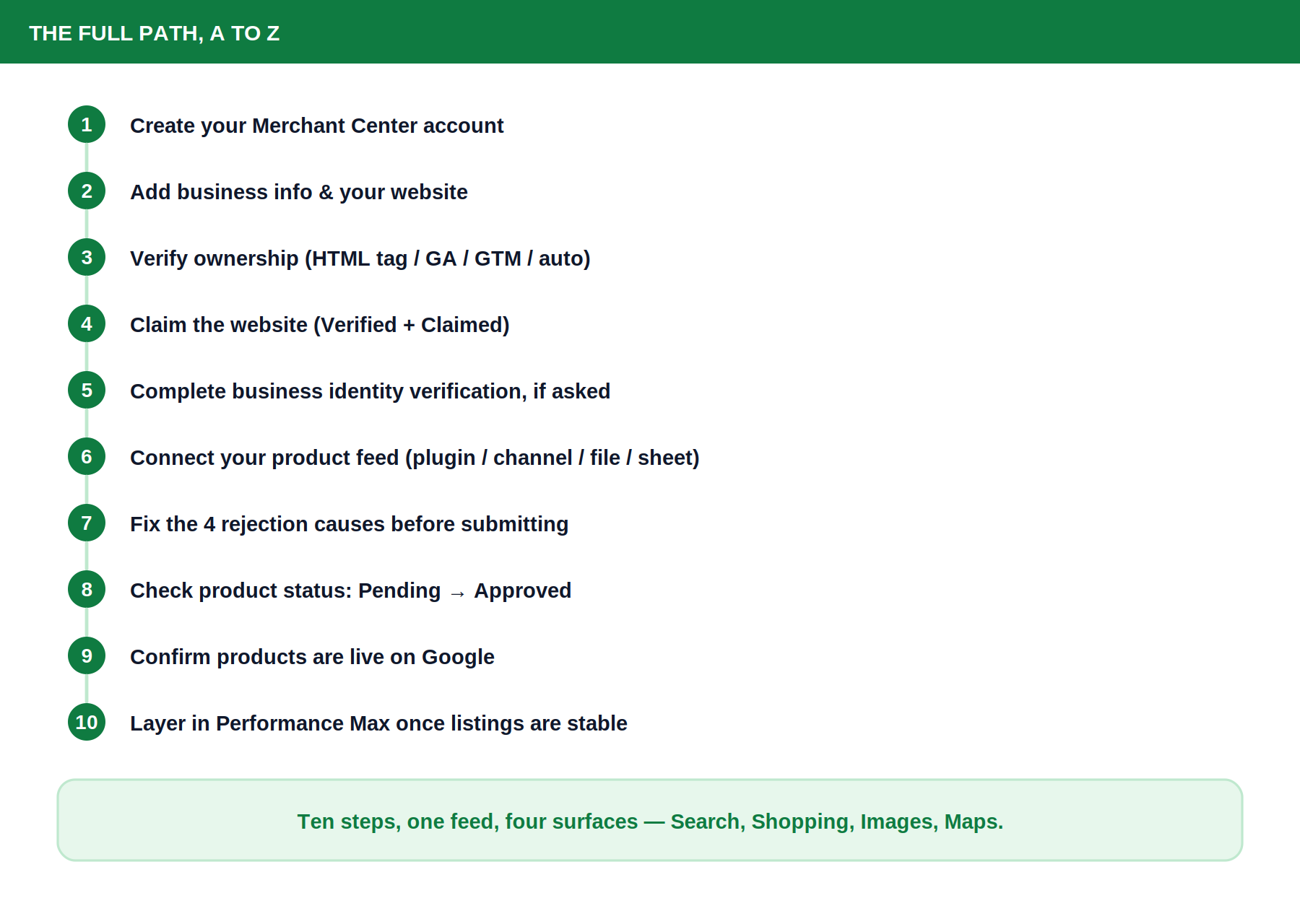
Most Google Shopping problems aren't visibility problems — they're data problems. A verified, claimed account with a disconnected feed shows nothing; a connected feed with a price mismatch or a missing return policy gets disapproved product by product; and a clean, accurate feed tends to solve both the free-listing and the paid-campaign side at once, since they're reading from the same source. Getting the account and feed right the first time is almost always less work than diagnosing a silent, empty Shopping tab six months later.
Media contact: apensiapr@gmail.com · +91 81468 55589
Sources: Google Merchant Center Help — A New Name for Merchant Center · Google Merchant Center Help — Create a Merchant Center Account · Google Merchant Center Help — Verify and Claim Your Website · Google Merchant Center Help — Verify Your Business Identity · WordPress.org — Google for WooCommerce Plugin · Google Merchant Center Help — Product Identifiers · Google Merchant Center Help — identifier_exists Attribute · Google Merchant Center Help — Tax and Price Requirements by Country. Accessed September 25, 2026; Google's exact screens, policies and requirements can change without notice — confirm current steps directly in your Merchant Center account before relying on this guide.