A Google Business Profile that isn't verified doesn't show up properly in local search or on Google Maps, can't be edited with confidence, and can't respond to reviews — it just sits there, unclaimed, often with wrong or outdated information a competitor or a random visitor added. Verification is the one step that turns a listing into something a business actually owns and controls. It's also the step most people get stuck on, usually for reasons that have nothing to do with how good the business actually is.
Why verification matters before anything else
An unverified listing is fragile. It can be edited by other people through Google's suggest-an-edit tools, it doesn't carry the same weight in local ranking, it can't respond to customer reviews with an official reply, and Google can suspend or hide it at any point without much warning. Verifying it is what turns a half-finished placeholder into a real, owned business asset — the same starting point every other piece of local SEO (reviews, photos, posts, Q&A) actually builds on top of.
Before you start — have these ready
- A Google account you'll keep long-term — not a personal one that might get deleted or handed over to an employee who leaves. Create a dedicated one for the business if there isn't one already.
- The business's exact legal/trading name — precisely as it appears on the shopfront sign, an invoice, or a registration certificate. Not a keyword-stuffed version like "Business Name Chandigarh Best SEO Company."
- A real, staffed address or a defined service area — a storefront customers can actually visit, or (for a business that goes to the customer) the specific areas served instead of a fake "storefront."
- A working phone number and website — ideally one that matches the domain used for email, since that can unlock faster verification later.
- The correct business category — Google uses this to decide which features and verification options the profile is even offered.
Step 1: Create or claim the Business Profile
Everything starts at business.google.com, not inside Google Maps or Search directly.
- Go to business.google.com and sign in with the Google account chosen above.
- Search for the business name. If a listing already exists (created automatically by Google or added by someone else), select it to claim it instead of creating a duplicate — a second listing for the same business is one of the most common, and most damaging, mistakes at this stage.
- Enter the business name exactly as it appears in the real world — see the checklist above.
- Choose the business category that most specifically matches what the business actually does.
- Add the location. Choose "Yes" to a physical location customers can visit if there is one, or set it up as a service-area business and list the areas served if there isn't.
- Add the phone number and website the business actually uses.
- Choose a verification method from whichever Google offers for that specific business — not every method is available to every listing.
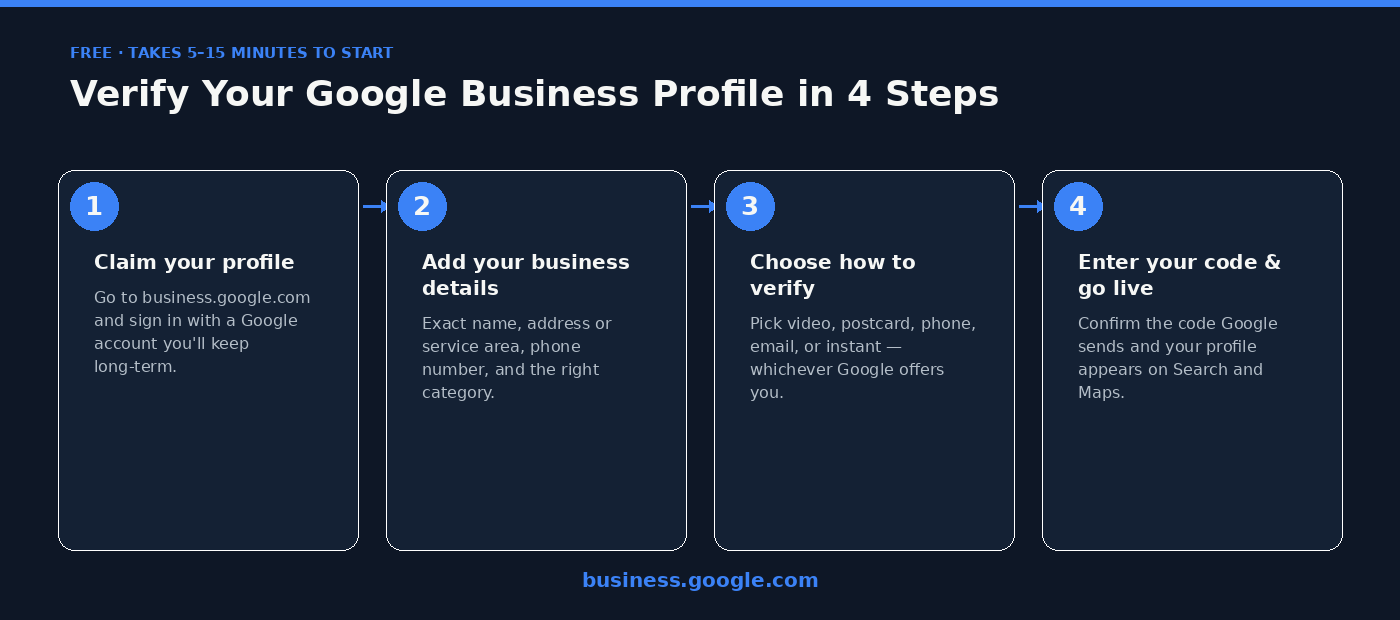
Step 2: Pick a verification method and complete it
Google decides which methods are offered to a specific profile based on its category, location and account history — not every business sees every option. Here's what each one actually involves.
Video verification
Record one continuous, unedited clip showing the exterior signage with the business name clearly visible, the entrance, the interior, and something that proves the person filming actually manages the location — unlocking the front door, standing behind the counter, or showing stock/equipment/a back office. Upload it for review from the verification screen.
Avoid: cutting the video into multiple clips, showing customers' faces or voices, or leaving open documents visible on screen — all three are common rejection triggers.
Postcard (mail) verification
Google mails a physical postcard with a 5-digit code to the exact address on the profile. It typically arrives within about 14 days. Once it arrives, enter the code on the same verification screen — codes expire 30 days after they're generated, so don't let the postcard sit unopened for too long.
Best for: a genuine storefront address that can reliably receive mail, where no faster method is offered.
Phone or text (SMS) verification
If offered, this is usually the fastest option — Google calls or texts the business phone number on file with a short code, which is entered straight back into the profile. The whole process can take minutes rather than days.
Email verification
Google sends a code to the business email address on the profile. This tends to be offered more readily — and process faster — when the email uses the same domain as the business's own website, rather than a generic free email address.
Live video call verification
A real-time video call with a Google representative. Have a device ready and be physically present at the business location — the call walks through the same kind of proof as the recorded video (signage, interior, proof of management) but live, with someone asking questions in real time.
Instant verification (via Search Console)
If the same Google account has already verified ownership of the business's own website domain inside Google Search Console, Google can sometimes grant Business Profile verification instantly — no postcard, video or call needed at all. It isn't offered to every business, but it costs nothing to check before assuming a multi-week wait is the only path: verify the website domain in Search Console first with the same account, then start the Business Profile claim.
Chains or brands managing 10 or more locations can also request bulk verification by submitting a spreadsheet of locations for review under a single request, instead of verifying each one individually — a separate process from everything above, meant specifically for multi-location businesses.
PAA: the errors that actually get verification rejected (and how to fix each one)
Most verification problems aren't random — they cluster around a handful of specific, fixable mistakes. According to an analysis of rejected verification attempts by zenweb.my, here's roughly how often each cause shows up, and exactly what to do about it.
Signage mismatch (about 26% of rejections) — the single biggest cause
The profile's name doesn't match what the camera actually shows on the shopfront. Fix: set the profile name to the real, registered business name exactly as it appears on the signage — strip out any city name or extra keywords ("Best SEO Company Chandigarh") added purely for search, since Google is checking what's printed outside the building, not what reads well in search results.
Ineligible address (about 21% of rejections)
The address isn't staffed, has no real signage, or isn't a legitimate place of business — common when a residential address or an unstaffed office is listed as if it were a public storefront. Fix: use a real location staffed during business hours, or switch to a service-area business and list the areas served instead of inventing a storefront that doesn't really operate as one.
Video missing location or access proof (about 18% of rejections)
The video doesn't clearly connect the person filming to the specific location — no visible street signage, no permanent business signage with the name on it, nothing proving they actually operate there. Fix: film one continuous clip that shows nearby street signs or landmarks, the permanent signage with the business name, and a clear proof-of-access moment — unlocking the door, working behind the counter, or showing tools and stock only the operator would have.
Profile details don't match reality (about 15% of rejections)
Something on the profile — hours, category, services, address details — doesn't line up with how the business actually operates. Fix: go through every field on the profile and check it against reality rather than against what sounds best for search, since Google cross-checks the submitted details against what the verification evidence actually shows.
Sensitive content visible in the video (about 11% of rejections)
Customer faces, voices, or visible personal/financial information caught on camera. Fix: record when the location is quiet or customer-free if possible, keep the camera off people's faces, and don't leave open paperwork, screens, or documents with personal details visible in frame.
Technical upload failure (about 9% of rejections)
The recording itself fails to upload, often from file size or length. Fix: if an upload keeps failing, try a noticeably shorter clip — a tighter, more focused recording usually goes through where a long one repeatedly times out.
Stuck "in review" with no update for weeks
Occasionally a submission just sits without a decision either way. Fix: wait the normal 1-2 week review window first, then contact Google Business Profile support directly rather than resubmitting blind — having a utility bill, lease agreement, or business licence ready to share speeds this up considerably.
Accidentally created a duplicate listing
A second profile for the same business, usually made by starting fresh instead of searching for and claiming the one Google already auto-generated. Fix: search for the business name thoroughly before creating anything new, and if a duplicate already exists, request a merge rather than trying to verify both — duplicates actively increase the risk of suspension for both listings.
What to do right after verification
Getting verified is the start, not the finish line. A bare, newly-verified profile with no photos and no activity still won't compete with an established, complete one nearby.
Do this immediately
Add real photos (exterior, interior, team, products), set accurate opening hours including holidays, fill in every relevant attribute and service, and write a complete business description in your own words rather than leaving it blank.
Then build on it continuously
Start collecting reviews using a direct review link so happy customers can actually leave one, reply to every review that comes in, and post updates regularly — a profile that's touched every week signals an active, real business far more than one left untouched since the day it was verified.
How Apensia handles this for clients
Apensia is a Chandigarh-based web development, SEO and digital marketing company, founded in 2015 by Kuldeep Chandel, who has worked in IT since 1995. Claiming and verifying a Business Profile correctly the first time — right category, right address type, a video or postcard submission built to actually pass — along with everything that follows (reviews, photos, ongoing local SEO) is a standard part of the Google Business Profile management Apensia runs for clients, not a separate add-on service.
FAQ
Why does my "Get verified" button keep showing up again?
It means verification didn't actually complete — Google shows the Get verified button again any time a verification attempt fails or is still pending. Open the Business Profile and check for a specific rejection message before trying the same method again; retrying an identical video or postcard request without changing anything usually fails the same way twice.
My verification video got rejected. What's the most common reason?
According to an analysis of rejected verifications by zenweb.my, the single biggest reason (26% of cases) is a business name on the profile that doesn't match the signage filmed in the video. The fix is to set the profile name to the exact, real registered name as it appears on the shopfront — remove any city name or extra keywords added for SEO, since those won't match what the camera shows.
My postcard never arrived — what now?
Google's own help documentation says a verification postcard typically arrives within 14 days. If it genuinely hasn't shown up after that window, request a new postcard from the same verification screen rather than waiting indefinitely — the previous code may also have expired, since postcard codes are valid for 30 days once generated.
Can I skip the postcard and verify instantly?
Sometimes. If the same Google account used for the Business Profile has already verified ownership of the business's website domain in Google Search Console, Google can offer instant verification with no postcard, video, or call required. It isn't guaranteed for every business, but it's always worth checking Search Console first before assuming a multi-week postcard wait is the only option.
I run a service-area business with no public storefront — how do I verify?
Set the profile up as a service-area business rather than a storefront location during setup, and hide the exact address while still listing the areas served. According to zenweb.my's rejection analysis, using an address that isn't actually staffed or doesn't carry real signage — the ineligible-address problem — accounts for roughly 21% of rejected verifications, and is avoided entirely by choosing the service-area option honestly from the start instead of listing a residential or unstaffed address as if it were a storefront.
Almost every verification problem traces back to one of two things: a mismatch between what the profile claims and what the evidence actually shows, or picking the wrong verification method for how the business actually operates. Fix those two, and the process that feels confusing the first time becomes a fifteen-minute task every time after.
Media contact: apensiapr@gmail.com · +91 81468 55589
Sources: Google Business Profile Help — Verify your business on Google · Birdeye — Google Business Profile verification methods, 2026 · Winston Digital Marketing — GBP verification methods, 2026 · zenweb.my — Can't Verify Google Business Profile? Fixes That Work. Accessed October 1, 2026.